
Configuration
This section describes the data import from ServiceNow. Information on how to write back data to the CMDB can be found in ServiceNow Writer. Importing data from ServiceNow requires the following information:
Table: ServiceNow Connector Settings
After the automation task has been added and executed, you can click on the task tile to see its details on the right panel. Here, Qbilon shows the three tabs “Data Source Details”, “Warning & Errors” (cf. Warnings and Errors chapter) and “Execution Details”.
Starting with the new Australia release, newly provisioned ServiceNow development instances block direct API/REST connections by default. This results in a “401 Unauthorized” error due to updated security settings. Before connecting any tools or scripts, assign the 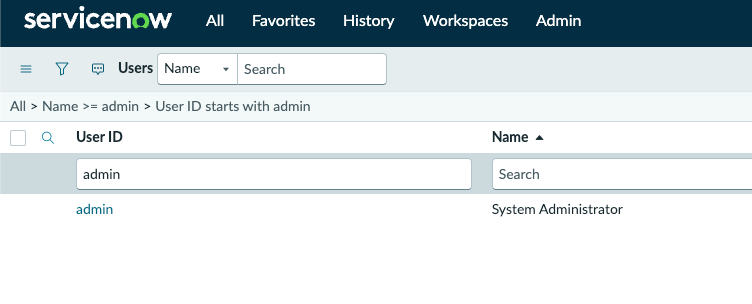
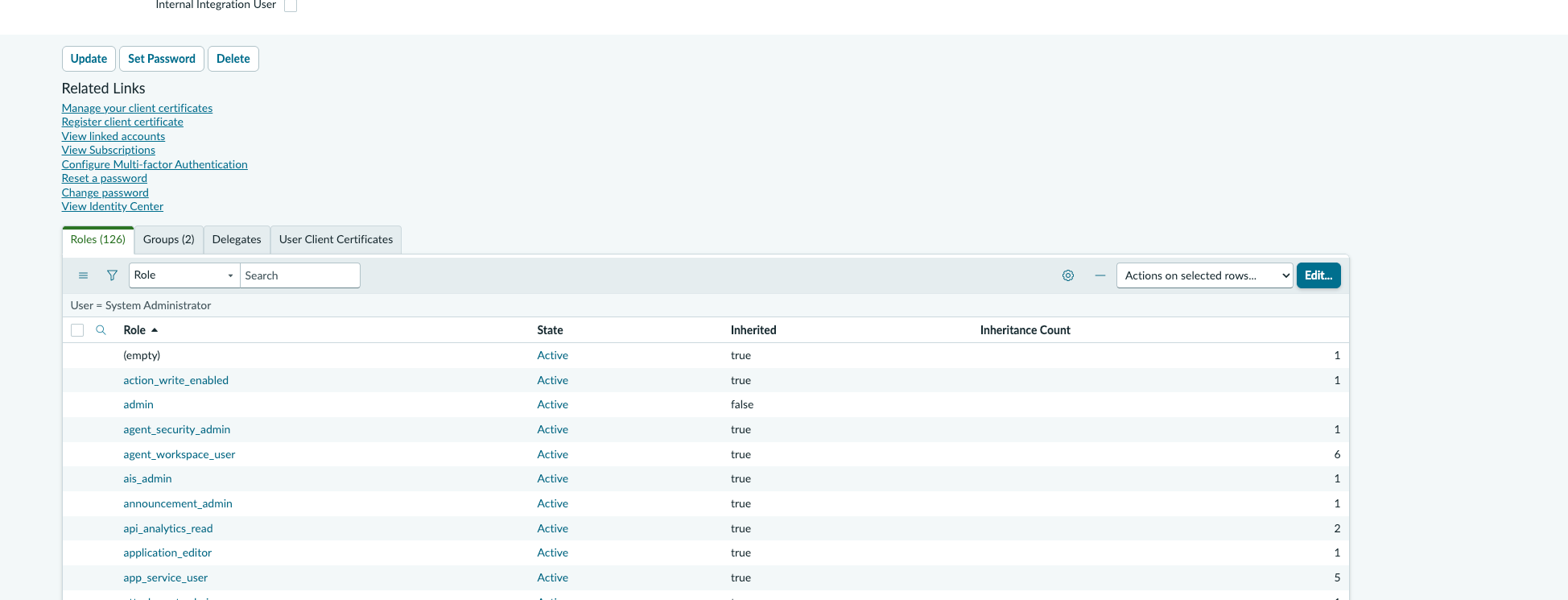
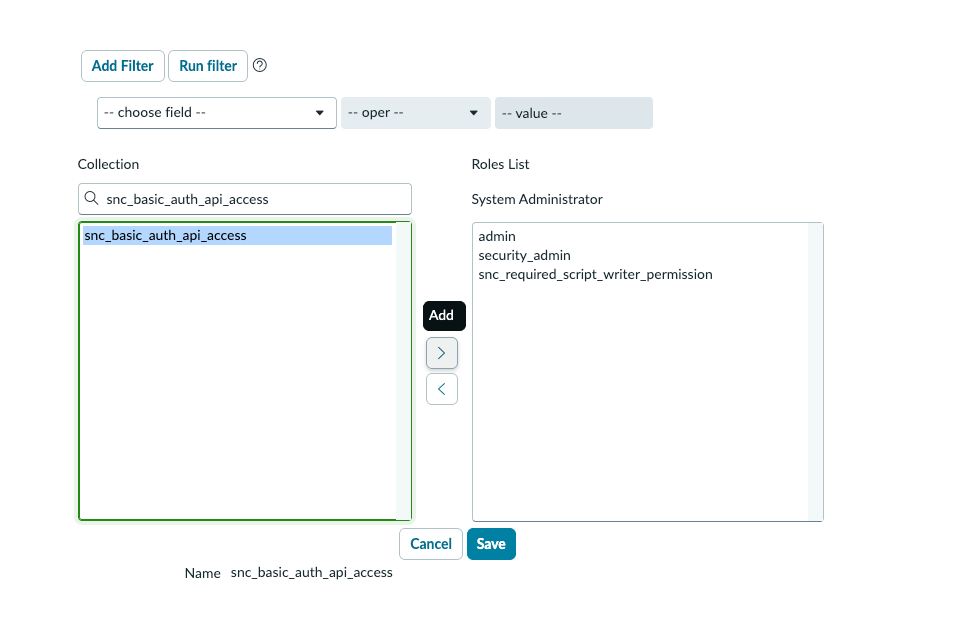
snc_basic_auth_api_access role to your user account (default admin) once. Once this role is added to your user account, you are all set and won’t need to do it again for that instance (unless a new instance is requested). Necessary steps are:- Select
Users. - Search for your username (default admin) and select it.
- Select the
Edit...button above the roles table:
- Search for the role and add it to the roles list by clicking”
>” andsave.
- Your account now has the role using the basic auth authentication method used by Qbilon.
Custom Tables Definition
In addition to the predefined tables inServices, you can create your own tables. You can also import custom tables you’ve created into Qbilon.
There are two main advantages to using Custom Tables instead of predefined services.
- You can define an optional query to limit the ServiceNow assets imported into Qbilon to only the ones you are interested in. This reduces loading time and the amount of asset quota used in Qbilon.
- References (not relations) between assets of those tables are automatically resolved and imported into Qbilon.
<technical table name><(optional query)>:<type name in Qbilon> (multiple tables must be separated via a comma).
-
technical table name: can be seen in the Class Manager of ServiceNow, usually similar to
cmdb_ci_abc -
optional query: can be skipped, but if used has to be a ServiceNow query that can be retrieved from the query editor in ServiceNow:
the value would look like this:
nameSTARTSWITHiron. - type name in Qbilon: This name can be chosen freely, e.g., “My Application”
- All “Applications”:
cmdb_ci_appl:ServiceNow Application - “Applications” that fulfill multiple criteria:
cmdb_ci_appl(nameSTARTSWITHiron^nameLIKESD) - “Applications” that contain “iron” in their name together with “Clusters”:
cmdb_ci_appl(nameLIKEiron):Application,cmdb_ci_cluster:Cluster
Dynamic Relationship Loading
Relationships between tables are loaded dynamically. Qbilon automatically fetches all relationships between theCustom Tables you have specified. If there is a relationship between records in “Table A” and “Table B”, Qbilon creates a relation with the correct relationship type.
This process fully supports inheritance. When you configure a parent table (e.g., “Table Y”) for loading, Qbilon automatically retrieves the relationships for all records in its child tables (e.g., Table X).
Please note that relationships are only loaded if they occur between the Custom Tables defined in your configuration.
Troubleshooting
If the ServiceNow connector encounters an error, the “Status” chip will turn red. Clicking on the “info icon” in the “Actions” button bar next to the data source provides further information, such as:Unauthorized: Authentication failedif the credentials provided are incorrect,Service Unavailableif the specified host is unavailable orBad Request: [...] status code "400" [...] invalid tableif an optionally provided “ServiceNow Custom Table” cannot be found.
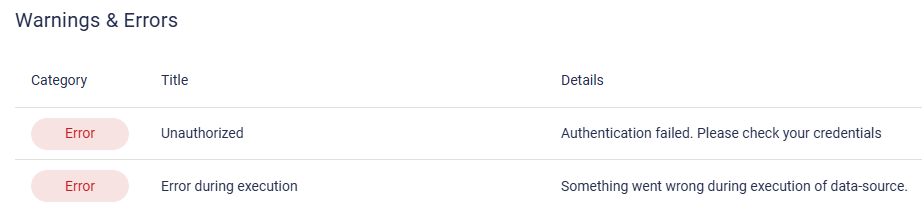
Warning: Forbidden message as shown in Figure 2.
