
Configuration
Importing data from PRTG requires the following information:
Table: PRTG Connector Settings
After the automation task has been added and executed, you can click on the task tile to see its details on the right panel. Here, Qbilon shows the three tabs “Data Source Details”, “Warning & Errors” (cf. Warnings and Errors chapter) and “Execution Details”.
Collected Data
Structure
The PRTG connector task fetches basic information from PRTG. The structure of this information looks like this: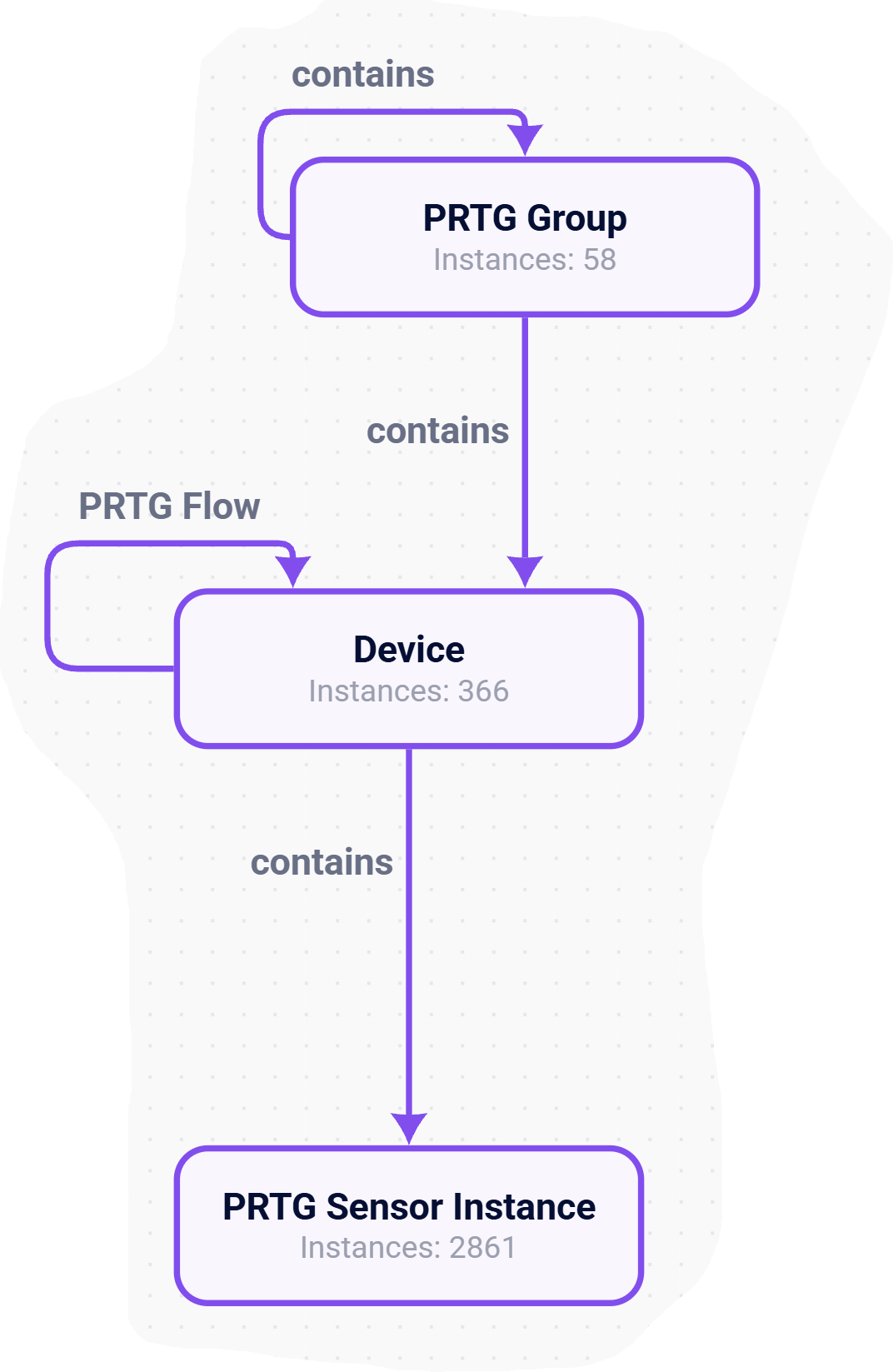
Data – PRTG Group
Data – Device
Data – PRTG Sensor Instance
”Contains” Relations
The collected “contains” relations reflect the structure of how the retrieved entities are structured within PRTG, e.g. a Group can contain another Group or Devices, while Sensors are contained within Devices. No additional information is collected on these “contains” relations as they only reflect the internal structure of PRTG and do not provide any additional information.PRTG Flow
The “PRTG Flow” connections are only available when there is one or more of the following sensors in use in your PRTG installation: If one or more of those is available, then your PRTG collects data about “Top Talkers”, “Top Connections”, etc. This information is used by Qbilon to reconstruct the communication connections between the devices you are monitoring with your PRTG. For every connection that starts from a device known to your PRTG installation and ends at a device known to your PRTG installation, Qbilon creates a relation between the two. Each of those connections provides the following, additional information:
Enhance Connection Detection
By default PRTG has a list of 100 “Top X”. This limits the number of PRTG Flow connections that can be retrieved by Qbilon, because –depending on your monitored IT– most of the “Top Talkers” in a system never change, e.g. only the “bottom” 20-30 of them vary constantly and can thus be detected as new PRTG Flow relations by Qbilon.
In order to be able to detect more PRTG Flow connections you can change the maximum number of “Top X” in PRTG. Please refer to the PRTG documentation on how to do this.
Additional Information
Please note the following information on access and rights management:- PRTG has to be reachable from the machine that runs Qbilon.
- There are no additional user accounts needed. If the corresponding credentials work within third-party tools, they will work in Qbilon too.
- If you want to create a separate PRTG user for Qbilon, then you can follow these steps:
System Administration➝User Accounts➝Create User(preferably with read-only access)Group Membership→Mandatory User Group Assignment(recommended: no administrative rights)Devices➝Main Group➝ (Right-click)Edit Access Rights➝ Reset read access for new user group as well as access rights of subordinate objects to “Assumed”