
General
The “ServiceNow Writer” task can be used to flexibly populate a ServiceNow CMDB according to individual requirements. It can be found in the “Data Writer” part of the “Data” section. The setup of a new “ServiceNow Writer” comprises three parts: the “Data Source Settings”, the “Writer Configuration” and the “Execution Settings”.Starting with the new Australia release, newly provisioned ServiceNow development instances block direct API/REST connections by default. This results in a “401 Unauthorized” error due to updated security settings. Before connecting any tools or scripts, assign the 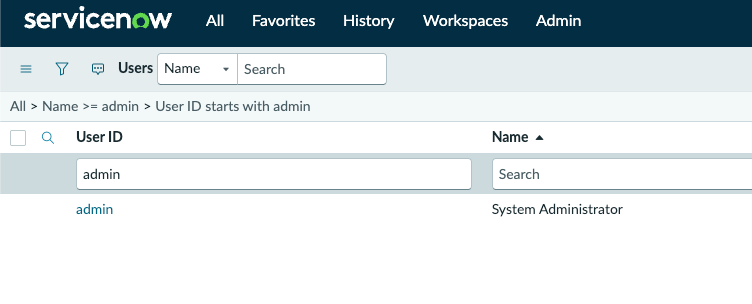
snc_basic_auth_api_access role to your user account (default admin) once. Once this role is added to your user account, you are all set and won’t need to do it again for that instance (unless a new instance is requested). Necessary steps are:- Select
Users. - Search for your username (default admin) and select it.
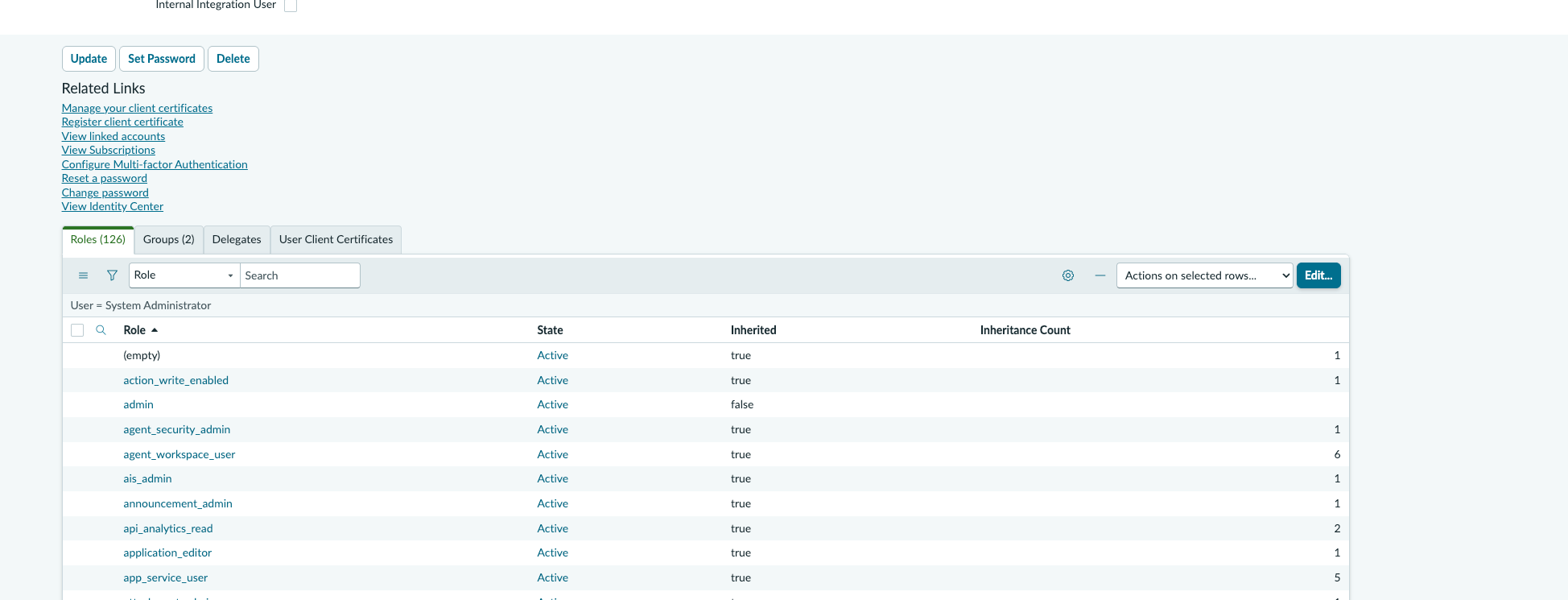
- Select the
Edit...button above the roles table:
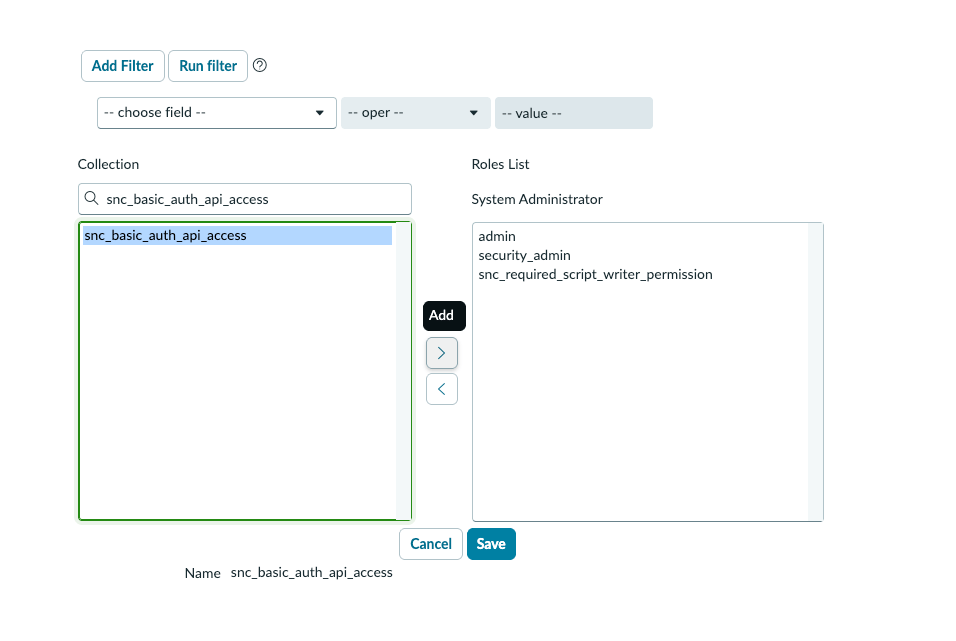
- Search for the role and add it to the roles list by clicking”
>” andsave.
- Your account now has the role using the basic auth authentication method used by Qbilon.
Configuration
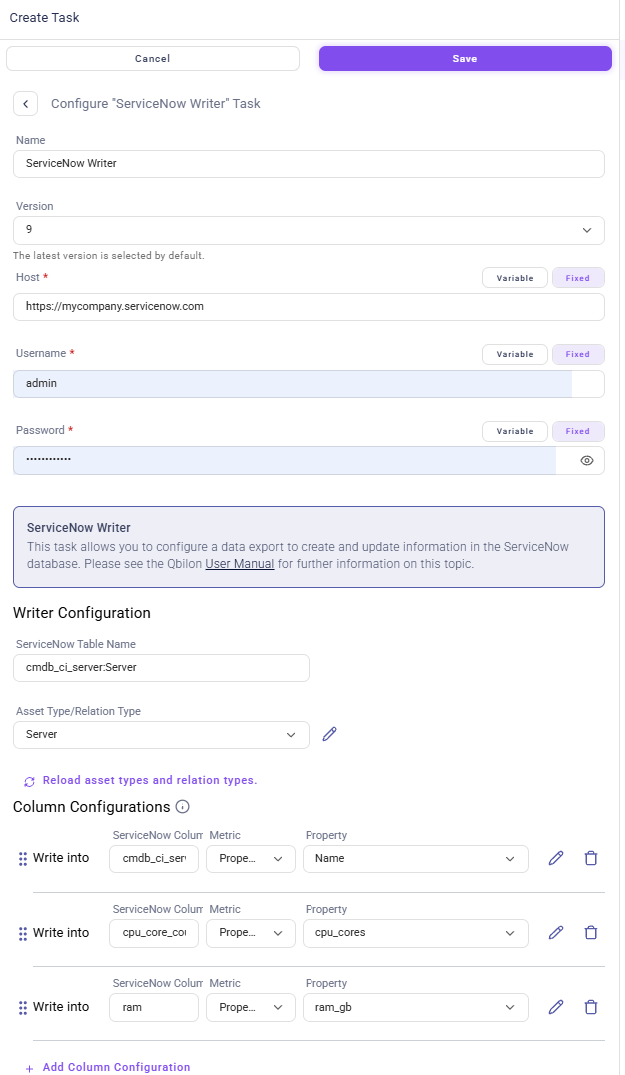
This part of the form is used to enter the credentials for accessing the ServiceNow CMDB. These can be found in the ServiceNow web interface by clicking on the ‘Profile’ icon in the top right corner of the home screen (the one you see immediately after logging in) and selecting ‘Manage Instance password’. ServiceNow’s “Instance URL” can be copied into theHost field of Qbilon’s ServiceNow Writer configuration (without the trailing ”/”). Correspondingly, the CMDB’s Username and Password are required for their namesakes in Qbilon.
Basic Settings
The basic “Writer Configuration” enables the user to specify what data should be written to the ServiceNow CMDB:ServiceNow Table Namedefines the specific target of the write operation (see below for a description of how to find this).Asset/Relation Typedefines the type of item to be written to the CMDB, e.g. “AWS EC2” asset instances or “is responsible for” relation instances.- Using the “edit icon” (
 ) on the right side, it is possible to define constraints, so that only asset/relation instances with matching property values are written to the ServiceNow CMDB.
- The following screenshot shows an example where the EC2 instances to be written to the CMDB are limited to those that are in a “running” state and have actually been “seen” since 1 August 2024, 12pm.
- Using the “edit icon” (
Column Configuration
In the directly adjacent “Column Configurations” section, the user can define a custom mapping of the asset/relation type’s properties in Qbilon and corresponding “ServiceNow Column Names”. If an asset type was selected from theAsset/Relation Type list, then the Metric dropdown list provides four options:
Static: writes a fixed value to the corresponding “ServiceNow Column”.- For example: Mark all “AWS EC2” instances that have not been seen for a while (or that meet specific deletion criteria) with a “deletion tag”. This can be done by setting a constraint for the “Type” like shown in Figure 2 and defining a static “Write into” entry in the “Column Configuration”.
Property: writes the value of the selected Qbilon property to the corresponding “ServiceNow Column”.Mustache: writes values according to a defined template into the specified column. If the template contains one or more tags (i.e. placeholders/variables) that match a property’s name of the related type, the tag is replaced with the corresponding property value. Please note that tag names are case-sensitive and must match the property exactly. Further details are available in Mustache’s official documentation.Reference: writes the “ServiceNow System ID” of a neighbor asset of the selected “Type” (see “basic Writer Configuration” above) into the specified ServiceNow column.- For example: Write the “ServiceNow System ID” of “AWS EC2” instance assignees into the ServiceNow column “assigned to” (as configured in Figure 3 below).
Neighbor Property: writes a user-defined property of any of the selected type’s neighbors into a specific ServiceNow column.- For example: Write the “Name” of “AWS Region” instances that are connected to “AWS EC2” instances into the ServiceNow column “deployed_in” (as configured in Figure 3 below).
Asset/Relation Type list, then the Metric dropdown list provides four options:
Static: writes a fixed value to the corresponding “ServiceNow Column”.Property: writes the value of the selected Qbilon property to the corresponding “ServiceNow Column”.Source Property: writes the property value of the relation’s source asset to the corresponding “ServiceNow Column”.Target Property: writes the property value of the relation’s target asset to the corresponding “ServiceNow Column”.
Support & Troubleshooting
How to find ServiceNow’s table and column names?
The “ServiceNow Table Name” and the “ServiceNow Column Names” can be obtained by using ServiceNow’s “CI Class Manager”. There, searching and navigating to the relevant class, e.g. “EC2 Virtual Machine Instance”, will show …- the “Table Name” under “Class Info >> Basic Info” and
- the required “Column Names” under “Class Info >> Attributes”.
Hints for Qbilon populating the ServiceNow CMDB
- Qbilon does not create new table columns on its own. Therefore, the target column to be populated must already exist in the ServiceNow CMDB.
- In case Qbilon does not find a corresponding asset/relation (table entry) in ServiceNow to update, then it will create a new “ServiceNow System ID” and attach it as property to the Qbilon asset/relation.
- If there are constraints defined for the selected
Asset/Relation Typeand/or the properties to be written (Column Configurations), then Qbilon will only create new rows/entries in the ServiceNow CMDB for those assets/relations and properties that match these constraints. - If
Referenceis selected asMetricwithin theColumn Configurations, Qbilon will only show entries in theNeighbor Typedropdown menu if there are neighbor assets with a “ServiceNow System User ID” property available.
When a Specific Field Is Not Written
All occurrences of this problem can be traced back to the same cause, which is that the property from Qbilon has a datatype that ServiceNow does not allow due to incompatibility. This issue can occur in various forms:- The ServiceNow target field expects a boolean value (
true/false) whereas the selected Qbilon source field is a number. - The ServiceNow target field is restricted in terms of its allowed values. For example, it is configured to only accept certain text values (such as in an enumeration with a fixed string set) and the Qbilon value does not match any of these values.
- The ServiceNow target fields are configured to be unique within a particular domain, and the value to be written has already been used elsewhere. For example, we have already encountered a case where the server name had to be unique within the whole ServiceNow CMDB, so Qbilon was forbidden to write some of the values it was supposed to write.