+” button at the top of the Tables List in the Custom Views section.
Define Rows (Asset Types)
In the first step, specific asset/relation types for the table view can be selected, e.g. “Azure Virtual Machines” or “Azure Disks”. In the resulting table view, each single row will show an instance of the selected asset/relation types together with their properties.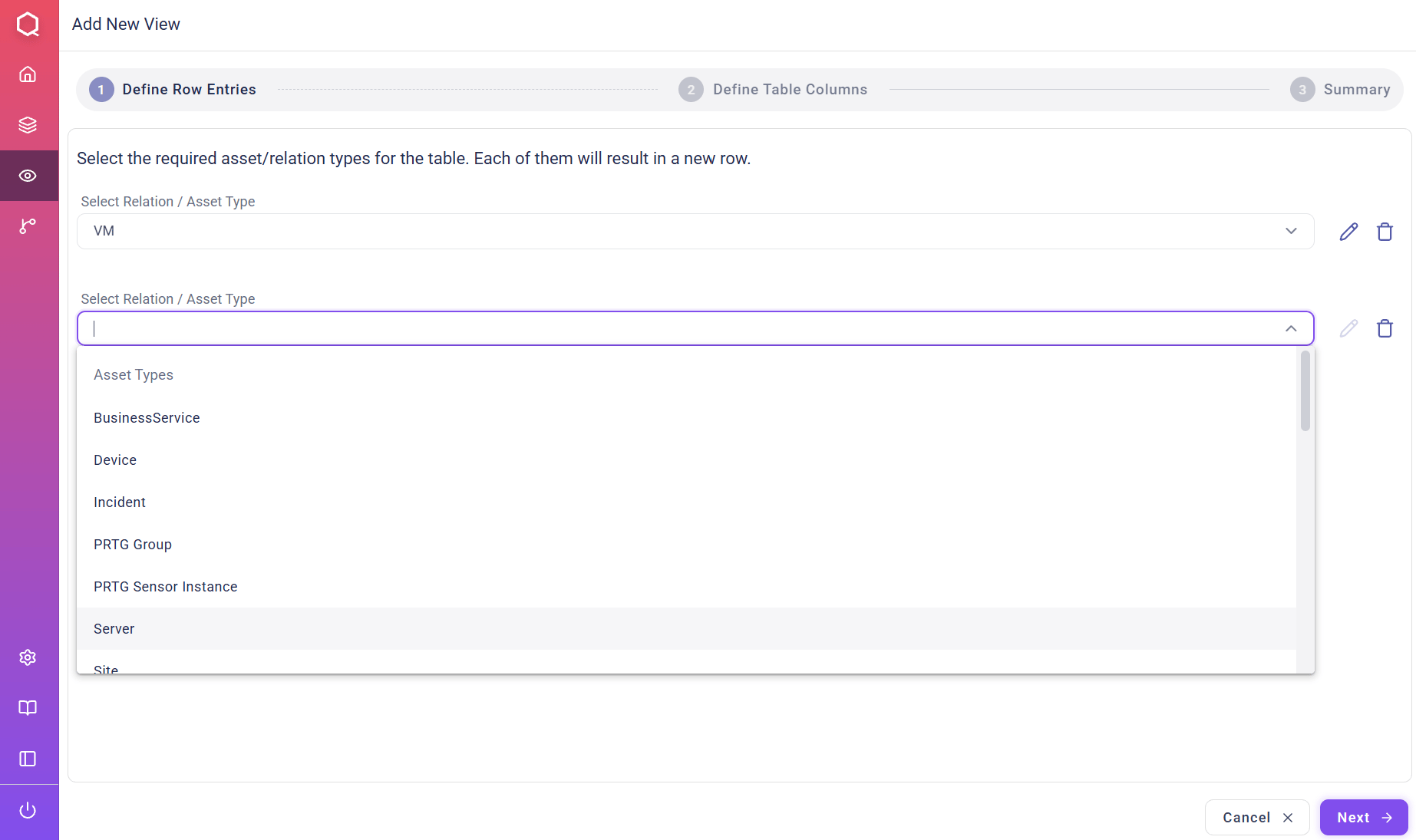
Constraints & Analysis Rules (Coloring)
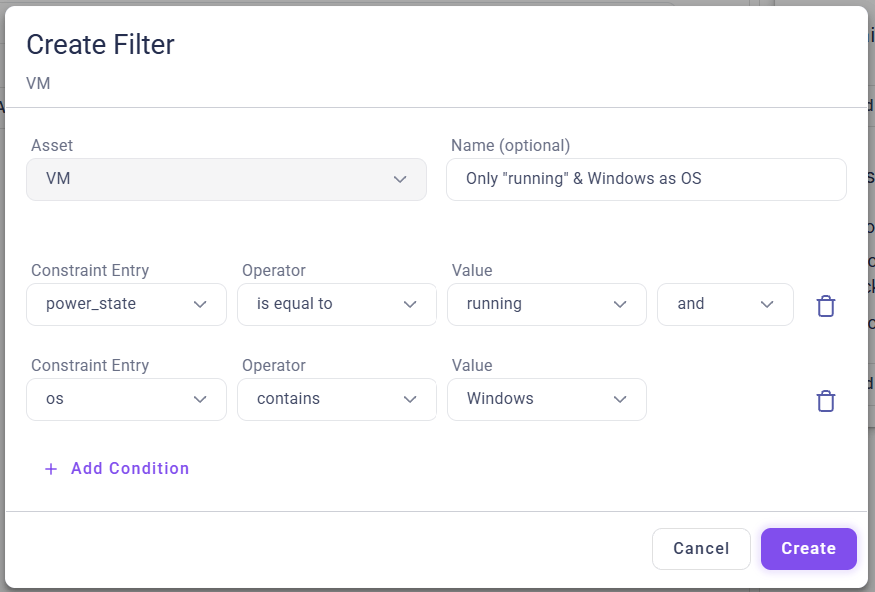
It is also possible to optionally define constraints and analysis rules for the selected asset/relation types.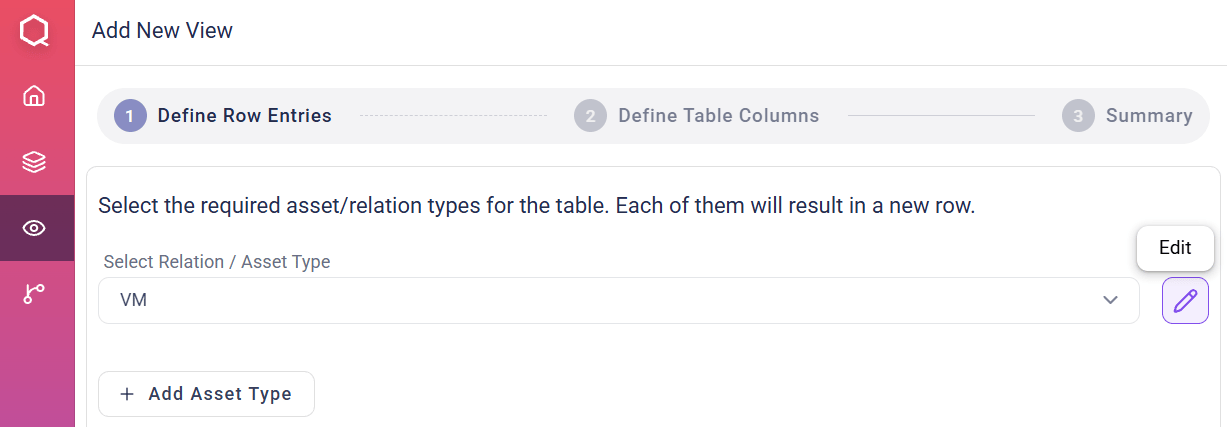
+ Add Constraint and + Add Rule buttons. Using the operators (AND/OR), multiple conditions for one constraint or analysis rule can be defined.
Define Columns (Properties & Relations)
In the next step, the properties to be shown for each asset/relation are selectable, e.g. the “Name” and “Power State” of each “Virtual Machine” instance.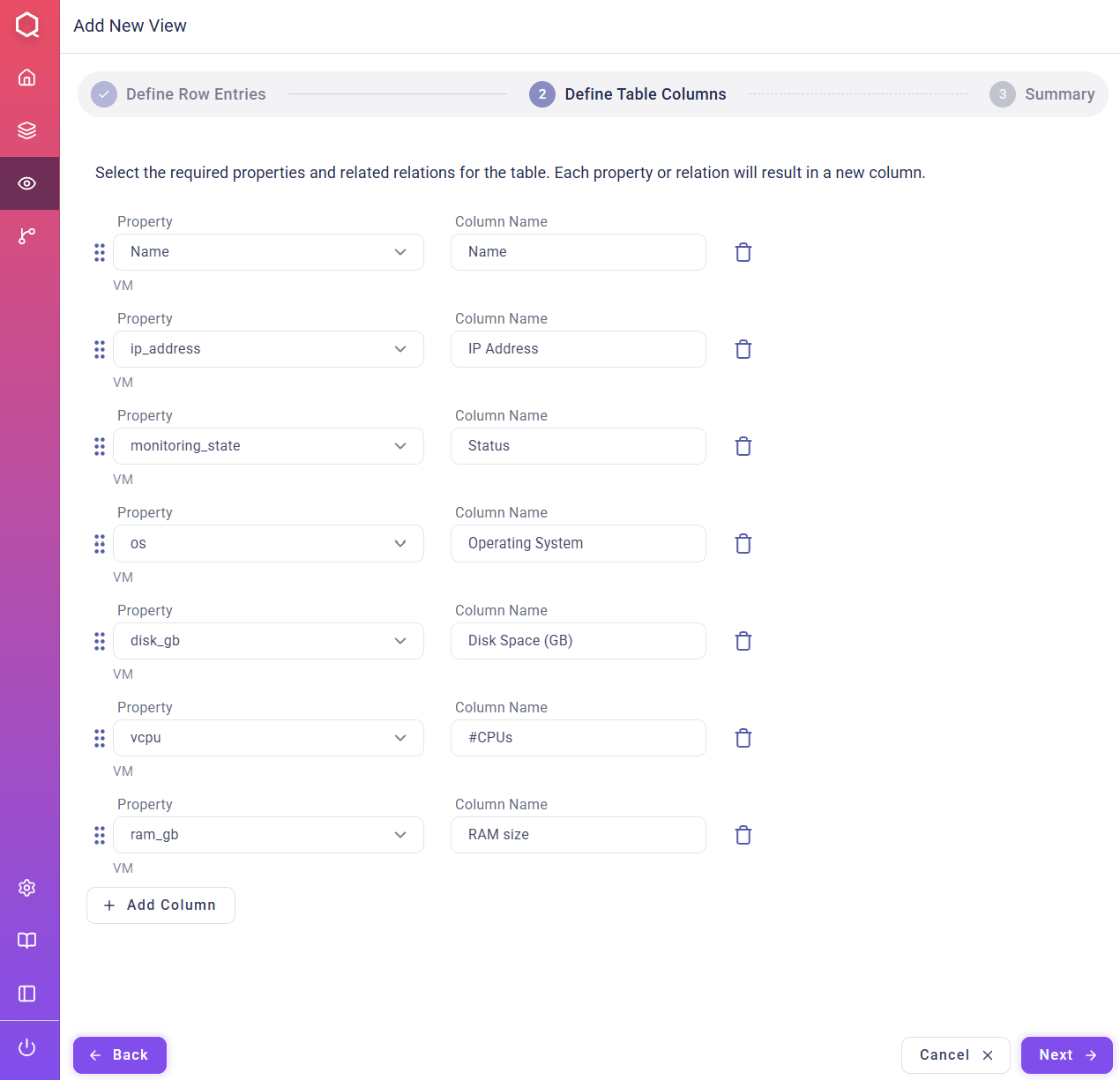
- properties directly belonging to an asset/relation – such as “Name”, “First Seen” or “Power State” – or
- relations associated with that asset/relation (see figure below).

- Using relations as property of asset types:
- Using relations directly as “type” in the initial “Define Row Entries” step (see above):
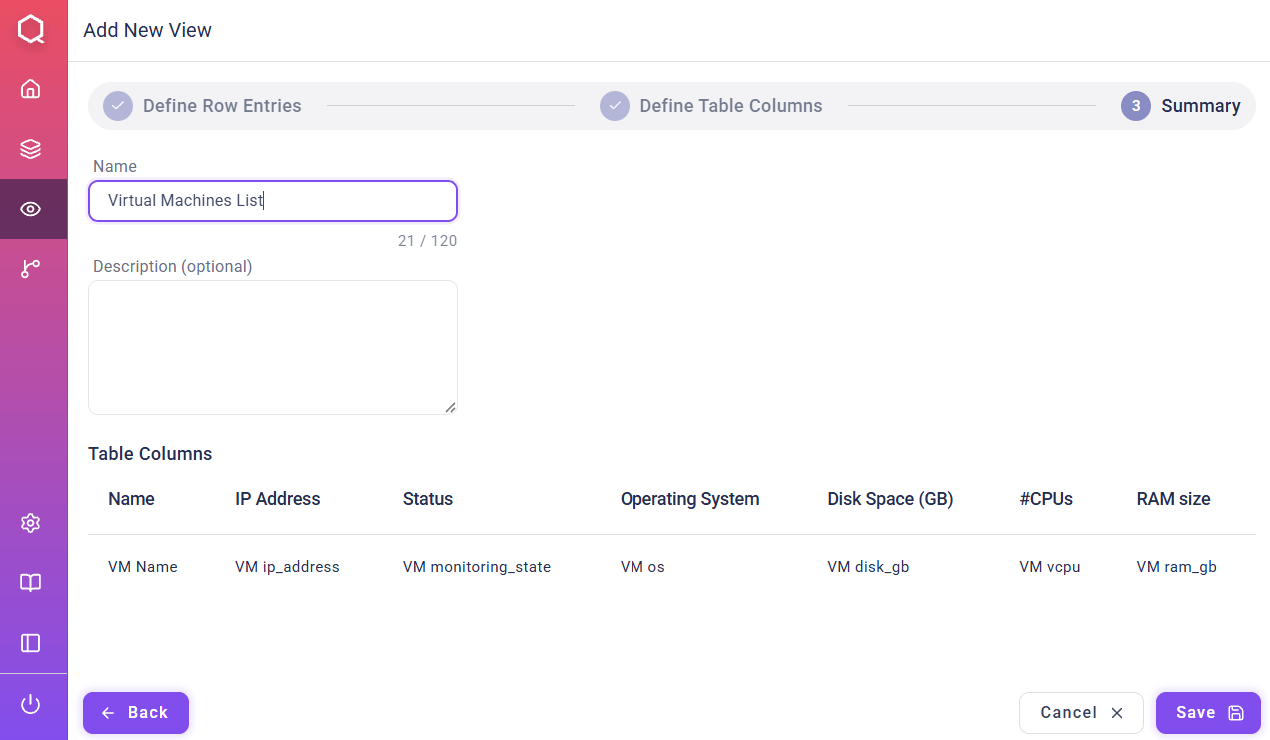
Table View Summary
In the “Summary” step, the final data schema of the table view is shown. As a last step, a name and an optional description for the view can be defined.