Preface
The sequence of tasks will commence with a rudimentary custom task, progressing to one that interacts with the Qbilon API. Finally, the program will report findings directly from Qbilon to the user’s designated MS Teams channel.Prerequisites
There are some prerequisites to complete the following tutorial steps:- a Docker Hub account,
- a code editor, e.g., Visual Studio Code and
- Docker Desktop installed on the local machine.
Hello Qbilon!
The first task is the classic “Hello World” program:- To do this, create a new folder on your machine and put an
app.mjsfile inside it. Open the blank file in VS Code and add the following line of code: - Create an additional file called
Dockerfilein the same folder. Open this file in VS Code as well, and add the following content: - Create a new repository at Docker Hub and remember its full name. It is usually in the form
<username>/<repositoryname>, e.g.,qbilon/qb-hello-qbilon. - Open a terminal in the same folder where you created the above files. To build a local Docker image out of your code and the Docker file, use the following command:
<your repository> part would be the <username>/<repositoryname> combination mentioned above, and the tag is usually a freely chosen “version.” For now, an example could be qbilon/qb-hello-qbilon:v1.
- Now that a local Docker image was built, it can be pushed to the public Docker Hub repository so Qbilon can find it. To do so, execute the following command in the same terminal as before:
Logging to Qbilon
The second custom task will focus on generating an actual log output in Qbilon to show that a task is working properly. To do this, follow these steps:- Change the code of your
app.mjsto the following:
- A new repository can be created on Docker Hub for this adopted project, or an old one can be reused by repeating the commands from the “Hello Qbilon” section to upload an updated version of the code.
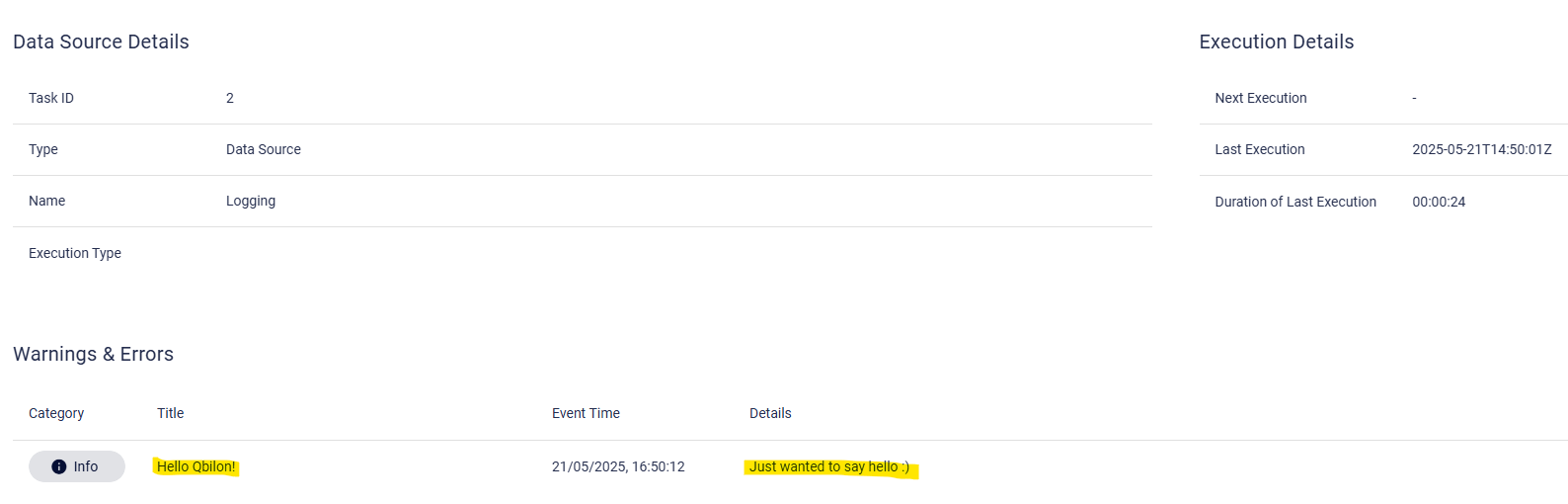
- Creating a task template from this image in Qbilon, generating a task for it and letting it run will result in the following output appearing in the details section:
Creating Custom Reports
Producing visible output with a custom task enables the utilization of this data via the Read API. For the sake of this example, we will assume that the objective is to report all Azure Virtual Machines and AWS EC2 instances that Qbilon has detected within the last 24 hours to a Microsoft Teams channel. Use the Workflows app in Microsoft Teams to create an incoming webhook. The retired Office 365 Connectors setup is no longer supported.- Open Workflows in Microsoft Teams.
- Choose the channel webhook template “Send webhook alerts to a channel”, or the equivalent “Post to a channel when a webhook request is received” template available in your tenant.
- Select the target team and channel, sign in to the required connection, and save the workflow.
- For this example, configure the webhook trigger to allow requests from “Anyone”. The example authenticates to the workflow by possessing its secret URL; it does not obtain a Microsoft Entra token. Use this option only if permitted by your organization’s policies. A tenant-only trigger requires additional Entra authentication that is outside this example.
- Copy the generated webhook URL. Keep it secret, do not commit it to source control, and do not include it in task logs.
- The replacement script sends an Adaptive Card message with an attachments array. Use a workflow that accepts this request format. A custom workflow that expects a different body must be adapted accordingly.
Configure WEBHOOK as a secret string, even if an older screenshot shows a URL parameter. One task instance queries one asset type. To report both Azure virtual machines and AWS EC2 instances, create two task instances from this template: one with TYPE set to Azure Virtual Machine and one with TYPE set to AWS EC2. Both may use the same Teams workflow webhook. Qbilon injects QB_HOST and QB_TASK_ID automatically; do not add these as custom configuration parameters.
support.microsoft.com
Next steps:
- Now that everything is set up, change the code in your
app.mjsfile to the following:
- There are no changes needed in the Docker file as no additional libraries are used.
- It is possible to update the existing image in an individual repository or create a new one and push it there.
- When creating a custom task template for the image, two additional configuration parameters should be created:

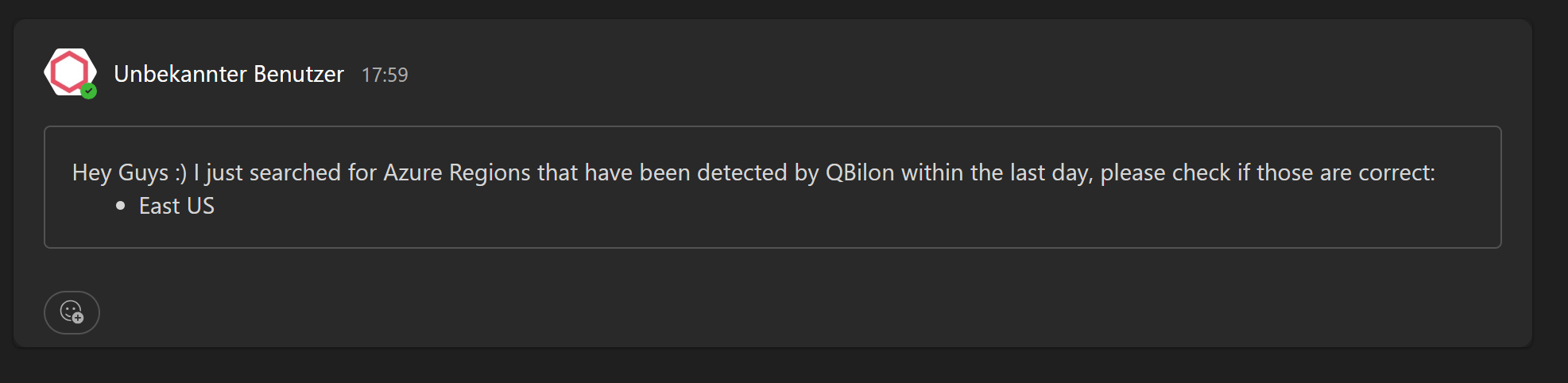
- A new automation can now be created for this task. Please use the MS Teams Webhook URL from before. Subsequently, the following message is received in the “Qbilon Showcase” channel: