
Preface
The main purpose of the CSV File Importer is to demonstrate the capabilities of Qbilon in an uncomplicated way, as it imports data quickly. It illustrates the features of the software in the context of the particular domain. As a result, the CSV File Importer requires the user to re-upload the CSV file if changes have been made to the original data, which can become tedious over time. In a real-world use case, the data imported by Qbilon should usually come in an automated way via connected third-party systems.Overview
To import data in CSV format, two files are required: one containing the assets and another containing the relations between them. For more information on how these files need to be structured, see the following chapter “File structure”.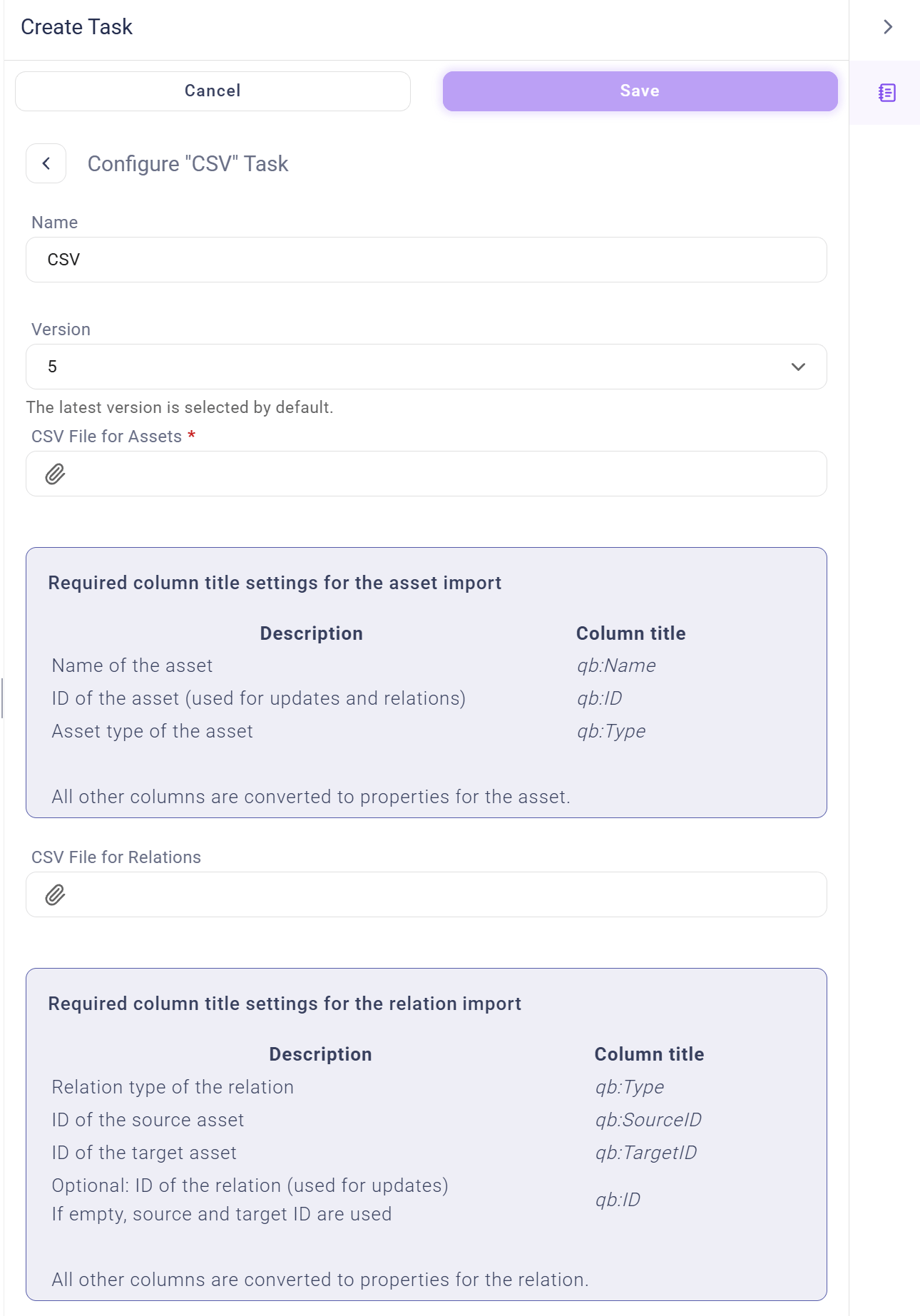
File Structure
As mentioned above, the CSV File Importer expects two different CSV files: one for the assets and one for the relations between them. The “assets” CSV file is mandatory in order for the import to work, whereas the one for relations is optional:- The “assets CSV” file requires at least three columns titled
qb:Name,qb:IDandqb:Type. - The “relations CSV” file requires the same columns titled
qb:Name,qb:ID(optional),qb:Typeas well as two additional columns namedqb:SourceIDandqb:TargetIDin order to create relations within the model. Each row in the CSV file is interpreted as an asset or relation. All columns –except the mandatory ones– are interpreted as properties for that asset/relation.
- text (strings),
- boolean values,
- dates,
- numbers and
- lists of the above named Data types are automatically inferred during import. For more information on how Qbilon infers data types automatically and how you can influence this mechanism, please read the following chapter “Inferring Column Data Types”.
Examples
To illustrate the CSV connector, here are two sample CSVs for assets and the relations between them. Table 1 shows a valid CSV file for three assets: two applications with properties “Critical” (boolean), “Deployed” (date) and “Business Unit” (text) and one server with the property “Version” (text):
Table 1: Valid CSV file for “Assets”
Table 2 shows a valid CSV file for two relations: one “use relation” between the applications “Aftersales Services” and “Consumer Portal” with a numeric property “Quantity”, and a “uses relation” between the application “Consumer Portal” and the application “HR Portal”.
Table 2: Valid CSV file for “Relations”
Inferring Column Data Types
The CSV file importer automatically infers the data type of each column. For example, if the column contains the values123 and 345, it would automatically infer “Number” as the appropriate data type.
For columns that contain ambiguous data types, the importer uses the majority of valid values as the data type for the column and discards or converts the rest in case of conflicts: For the values 1, 3.4.5 and 2.3.4 it would infer “Text” as the data type and convert the leading 1 to its text representation. On the other hand, if the values had been 1, 2 and 2.3.4, it would have inferred “Number” as a data type and discarded the value 2.3.4.
If a user wants more control over what data type is used for a particular column, it is possible to explicitly assign a data type to a column using the notation <column name>$<datatype>, e.g. No. of CPUs$Number. The valid data types are:
- Text
- Boolean
- Number
- DateTime
- List<one of the above>
[value1|value2|value3], for example, [Aftersales|Product|Human Resources] will result in a list of the three given department names.
Examples
Using this table, different ways of inferring data types are explained:
Table 3: Valid CSV file for “Assets” with properties of different data types
- Column
Critical:
- Column
Deployed:
Deployed$DateTime. Therefore the data type will be “datetime” and only the first row will successfully be imported. The other two values will be discarded as they can not be turned into a “datetime”.
- Column
Version:
Number as the appropriate data type, as “7.1” and “8.2” would be interpreted as decimal numbers.
- Column
Responsible:
List<Text> as the data type. Qbilon will remove the entry with “Peter Parker” as it is plain text and cannot be converted into a list.
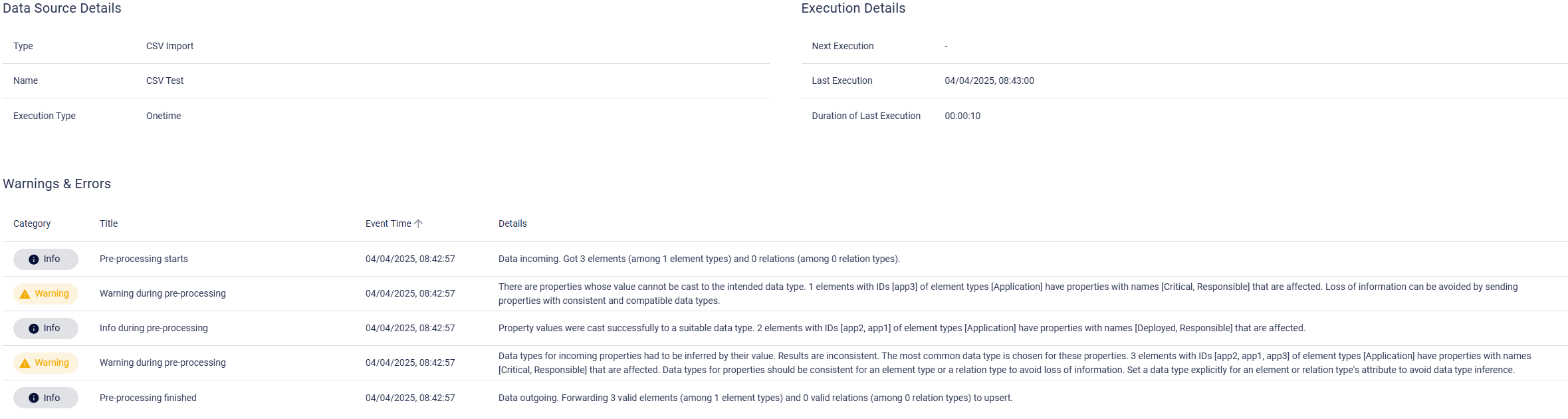
If the above table is imported into Qbilon, the log of the CSV task will also provide insights into what happened during type inference in qbilon. In addition, it will provide hints on how to improve the data in the provided CSV file.
Updating CSV Data
You might want to update the data that was loaded into Qbilon via the CSV File Importer. The importer actually makes a copy of your CSV file and uploads it to Qbilon. So you can’t just re-run the task. Instead, you need to change the data that it should use. To do this, edit the automation and task you created for the CSV file import. When you are asked for the CSV file, add the updated version. Remember to run the task again afterwards, as edits usually don’t automatically run the automation or task again. Qbilon deals with different data sources, so you might see unexpected behavior when you update your data in the CSV file and Qbilon re-imports it. To understand what to expect from this update, we will go through the different cases you might encounter.Case – Added asset/relation in CSV file
If the newly added asset has a completely new value in itsqb:ID column, e.g. when a new row app4 was added in the above CSV , then Qbilon will simply add the new asset as expected. However, if you have been reusing an already used ID, e.g., app1 in this column, then Qbilon will update the old asset it has once seen in your CSV file with that specific ID. It will also update all the properties of that asset with new values, if there are any.
If there are two assets with the identical qb:ID, qbilon will not import any of those, as it is unclear which is the correct one. There will be a log error provided explaining which IDs are affected. All of the above also applies to relations.
Case – Removed asset/relation in CSV file
Qbilon keeps track of all assets it has once seen, as some of the data sources connected to Qbilon may not always report all assets it will ever see, but only those that were seen within a given time-frame. For example, if you import network data via “Wireshark”, it will only report assets that have communicated during the time the Wireshark sniffer has run, but not those that stayed quiet during that period. To capture all assets over time, Qbilon doesn’t automatically delete assets when the data source doesn’t report them anymore. If you remove an asset, e.g.app2, from the CSV file and then update it in Qbilon, Qbilon will still show you the asset Consumer Portal. However, all of that asset’s properties will not be updated anymore. You can also filter it using its Last Seen property, as this will stay at the point in time when it was seen for the last time. The above also applies to relations.
Case – Added property to an existing asset/relation
If you decide to add a new column to a row in your CSV file, Qbilon will simply add this property to your existing assets and add the values provided in your CSV for each asset. For example, if you add the new columnDescription and provide a value in the rows of app1 and app2, then these two assets will be updated with the newly provided Description property. The above also applies to relations.
Case – Removed property from an existing asset/relation
We have to distinguish between two different cases:- The column for the property has been removed completely (including the column header).
- The cell entry for a given row (or all of them) has been removed, but the header stayed.
Case – Changing a property data type
If you change the data type of a property, e.g. for “Critical” from “boolean to “number”, then Qbilon will detect this during the next import and ignore the new number values. The rule qbilon follows here is: the data type, that has been persisted first, stays. Qbilon will also provide you with warnings in the logs of the CSV tasks. These warnings explain what property the problem is in and what was done by Qbilon to deal with the inconsistent data. If you really want to change the data type of a property, you will have to delete it in the data schema section and then rerun the CSV file importer.Case – Changing the type of an asset or relation
If you decided to change the type of an existing asset, e.g., changing the valueqb:Type of app1 from Application to App, then Qbilon will ignore these changes, as the type of an asset cannot be changed once it has been added to the database. Qbilon will tell you that it has found a problem with the type you have selected and will use the type that is already stored in its database instead. The same is true for relations.
Troubleshooting
Problem: Qbilon shows strange symbols instead of special characters
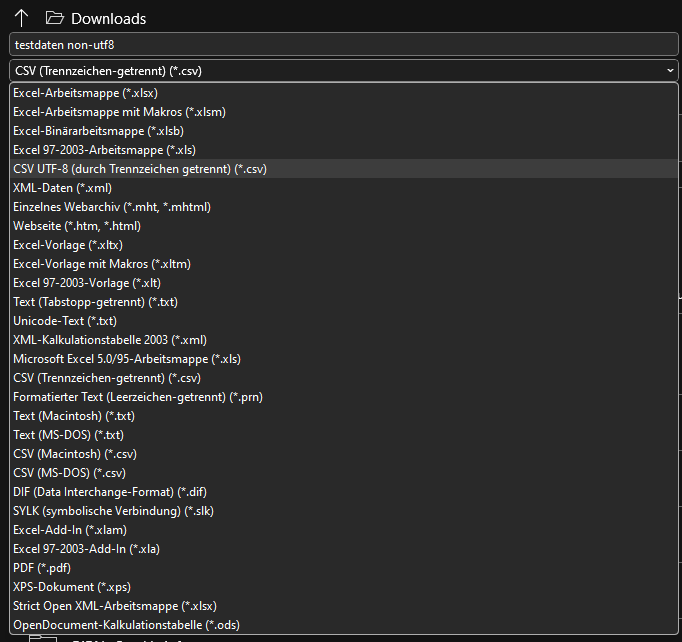
Sometimes, after you’ve uploaded a CSV file into Qbilon and created a view, you might see something like the following in Qbilon when special characters like “ä”, “ö”, “ß”, “é”, etc. are involved: Solution: Qbilon expects the CSV file to be encoded in UTF-8. This is easily achievable as shown in the following two examples. 1. “Excel”- Open your CSV file.
- Go to “File → Save as”
- Select “CSV UTF-8” as depicted in the screenshot:
- Save the file and use this one instead of the wrongly encoded one.
- Open the file with “VSCode”,
- Click in the left bottom corner on the encoding like shown in the screenshot:
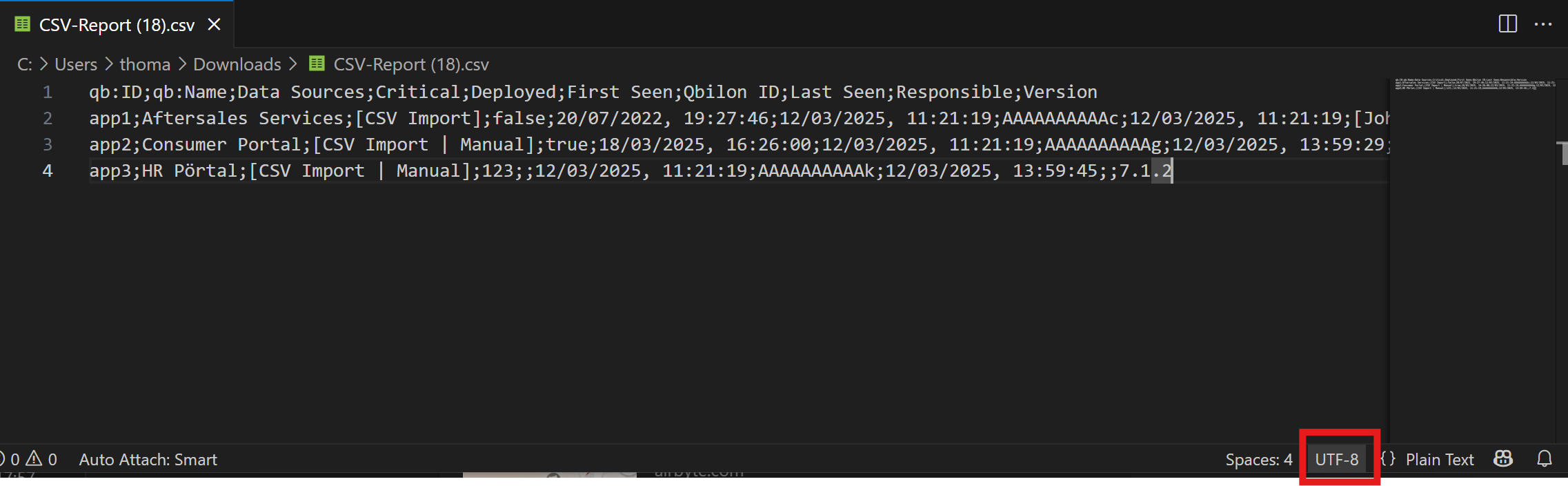
- Change it to UTF-8.
- Save the file and use this one instead of the wrongly encoded one.